
Take notes for me lets a solo consultant listen instead of typing, but it is only as trustworthy as the check you do afterwards. You need Business Standard or higher, one spoken language per meeting and a call of at least fifteen minutes. Tell the client before you start, share the notes with hosts only until you have corrected them, and never send an unverified summary as the record of what was agreed.
Editorial research checked September 14, 2026 against Google Meet Help, Gmail Help and the Google Workspace Updates blog. Nothing here is legal advice on recording or consent, which varies by jurisdiction. This article contains no affiliate links.
The manual baseline
A consultant without a note-taker usually splits attention across the call:
- Type or handwrite notes while the client talks, and miss some of what they say.
- Pause the conversation to confirm a number or a date.
- After the call, rebuild the decisions and action items from partial notes and memory.
- Write the follow-up email and hope nothing was forgotten.
Time your last three client calls from the end of the meeting to the moment the follow-up was sent, and note what you had to ask the client again. That is the baseline to compare against. We do not supply a saving figure: the automated notes still need the review described below, and how long that takes depends on your meetings.
 Before you buyGoogle Workspace Flexible vs Annual: The Real Solo CostFlexible or annual billing for one seat: totals, break-even and cancellation rules.See the plans →
Eligibility, limits and cost
| Condition | What Google documents |
|---|---|
| Workspace editions | Business Standard and Business Plus, plus Enterprise Standard, Enterprise Plus and Frontline Plus. Business Starter is not listed. |
| Personal accounts | Google AI Pro or Google AI Ultra. |
| Spoken languages | English, French, German, Italian, Japanese, Korean, Portuguese, Spanish; one language per meeting. |
| Meeting length | Recommended from 15 minutes to a maximum of 8 hours. |
| Output | A Google Doc saved in the organizer’s Drive, attached to the Calendar event, with an email recap to the organizer. |
Sources: “Take notes for me” in Google Meet and Get started with Google Workspace with Gemini. Google says multiple languages “spoken in the same meeting aren’t currently supported”, so bilingual calls are a poor fit.
If you are on Business Starter today, the feature is an edition upgrade. On Google’s USD list prices, Business Standard costs $14 per user per month on an annual commitment against $7 for Starter, an extra $84 a year; on flexible billing it is $16.80 against $8.40, an extra $100.80 a year. Source: Business editions. Our flexible vs annual guide covers which billing plan to choose.
Setup before the meeting
- Host from the eligible account. Create the event in Google Calendar from your Business Standard or Plus account, so the notes land in your Drive.
- Turn notes on for this event only. Google lets organizers turn on Take notes for me from the Calendar event. Its calendar settings also offer automatic notes for every meeting you host, or only those with three or more guests; the default is Off, and for client work a per-meeting decision is easier to justify. Source: Calendar and Meet settings.
- Choose who receives the notes. The options are “All invited guests, including those outside of my organization”, “Invited guests in my organization”, or “Hosts and co-hosts only”. Pick hosts and co-hosts only while you are new to the feature.
- Keep host controls on, so that “only the host and co-hosts can start and stop taking notes”.
- Put the notice in the invitation, using the script below, so the client can object before the call.
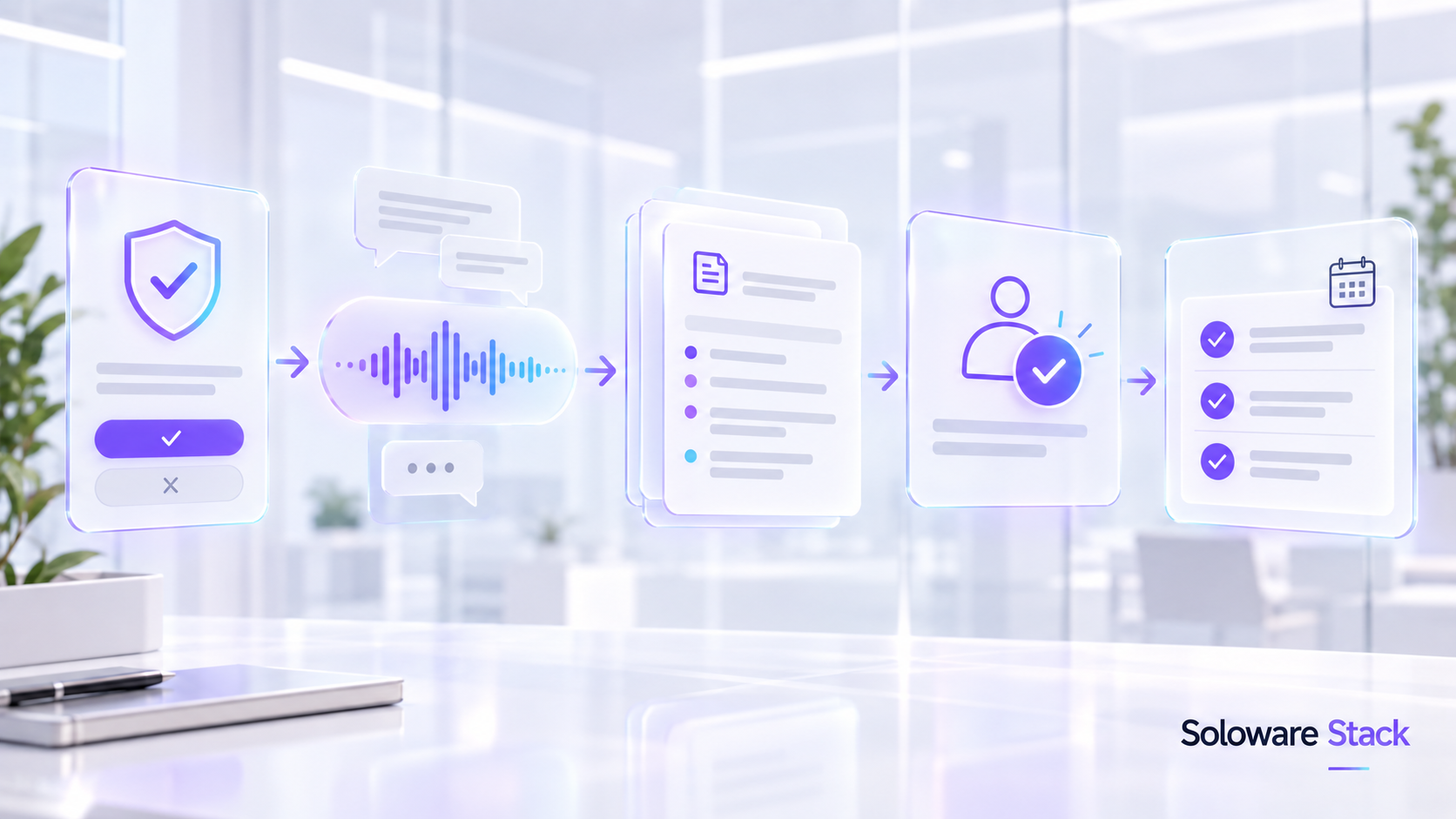
A consent notice you can adapt
Google Meet does announce the feature: it “informs all meeting participants that notes are being taken and the pencil icon appears on all participants’ screens”, and Google tells users to “let everyone know” they are using it. A banner in the middle of a call is not the same as agreement, so ask first. The wording below is an example, not legal advice.
In the invitation: “I’d like to use Google Meet’s automatic note-taking on this call so I can focus on our conversation. The notes stay in my Google Drive and I’ll check them before sharing anything. If you’d prefer I don’t, reply and I’ll take notes by hand.”
At the start of the call: “Before we begin, are you still comfortable with me turning on automatic notes? I can switch them off at any point.”
If the client says no or hesitates, leave it off. Workspace admins can also require explicit consent: Google announced on May 5, 2026 that admins can “require explicit consent from meeting participants before automatic note-taking, recording, and/or transcription begins.” The setting is off by default and is available on Business Standard and Plus. Source: Google Workspace Updates. On a one-person Workspace account you are usually the admin, so you can turn it on for your own domain.
Sharing, storage and Drive permissions
Google states that the notes document “is generated shortly after the meeting ends and is saved in the meeting organizer’s Google Drive in the ‘Google Meet’ folder”, and that it “is automatically attached to the Google Calendar event and is accessible to internal meeting invitees based on the configured settings.” People you share with “will receive an email with access to the generated notes doc after the meeting.”
Because the notes are an ordinary Doc in your Drive, normal Drive sharing applies. Before you change the sharing settings or forward the document, open it and check who already has access. If the notes were sent to all guests automatically, the unreviewed version has already left your control, which is the main reason to start with hosts only.
The post-meeting accuracy check
Google lists causes of incomplete summaries, including connectivity issues and meetings shorter than the recommended fifteen minutes, and its Gemini pages warn that features “may suggest inaccurate or inappropriate information.” Do this before anything leaves your Drive:
- Read the notes the same day, while you still remember the conversation.
- Check every number, date, price and deadline against what was said and your own records.
- Check names and roles, especially for people mentioned but not present.
- Separate decisions from discussion. An option someone raised is not an agreement.
- Remove anything the client said off the record or that should not be in a shared document.
- Mark the document as reviewed, for example with your initials and the date at the top.
Action items need an owner, not just a line
Automatic notes can list next steps, but they cannot know who actually accepted responsibility. Rewrite each action as owner, task and date, and confirm the client’s items in your follow-up rather than assuming the notes captured them.
| Owner | Action | Due | Confirmed |
|---|---|---|---|
| You | Send revised proposal with two pricing options | Friday | Yes, on the call |
| Client | Share last quarter’s sales export | Next Tuesday | Ask in follow-up |
| Both | Agree the kickoff date | Next call | Not yet agreed |
If the follow-up leads to a paid session, our paid bookings checklist covers taking payment for the next meeting.
Meetings where notes should stay off
- Anyone objects or hesitates, including a participant who joins late.
- Legal, HR, health or financial-account discussions, where a written summary creates risk you do not need.
- Calls under a confidentiality agreement that restricts recording, transcription or AI tools.
- Negotiations, where a paraphrase of a position can be read as an offer.
- Bilingual or mixed-language calls, which Google says are not supported.
- Very short calls, below the fifteen-minute recommendation.
Retention and cleanup
We found no separate retention period for Meet notes documents: they are files in the organizer’s Drive, so they stay until you delete them. Decide how long you keep client meeting notes, delete them when the engagement’s record-keeping period ends, and remove access for anyone who no longer needs it. Google’s privacy hub states that Workspace content is not human reviewed or used for model training outside your domain without permission, and that Gemini only retrieves content the user can already access. Source: Generative AI in Google Workspace Privacy Hub. Google Vault retention tools are included only in Business Plus.
Frequently asked questions
Does Business Starter include Take notes for me?
No. Google’s Gemini feature table lists it for Business Standard and Business Plus, not Starter.
Will my client get the notes automatically?
Only if you choose that. The organizer can share with all invited guests including external ones, internal guests only, or hosts and co-hosts only.
Where are the notes saved?
In the organizer’s Google Drive, in the Google Meet folder, and attached to the Calendar event.
Can I use it for a call in two languages?
Google says the feature supports one language at a time and that multiple languages in the same meeting are not currently supported.
Is the meeting banner enough consent?
Treat it as notice, not agreement. Ask the client before the call, and consider requiring explicit consent in your admin settings.
Sources and method
Eligibility, languages, length, sharing, storage and consent settings were checked on September 14, 2026 against the Google pages linked beside each claim; most Meet Help articles showed no update date, and the consent announcement is dated May 5, 2026. The upgrade costs are our arithmetic on Google’s published USD list prices. Consent and recording rules depend on where you and your clients are; take advice if you are unsure.
Read next