Gemini in Google Docs is worth using once you already have an approved brief: it drafts faster than a blank page, can pull from your Drive files and email, and lets you accept or reject each suggested change. It should never decide your scope, price, dates, legal terms or promises. Lock the brief first, draft second, then check every commitment against the brief yourself before anything reaches the client.
Editorial research checked September 18, 2026 against Google Docs Editors Help, Google’s Gemini data-protection page and the Google Workspace pricing page. This article is based on Google’s documented behavior and limits. The initial research connection served Japanese yen. A separate September 18 check confirmed USD pricing on Google’s official pricing and billing-help pages. This article contains no affiliate links.
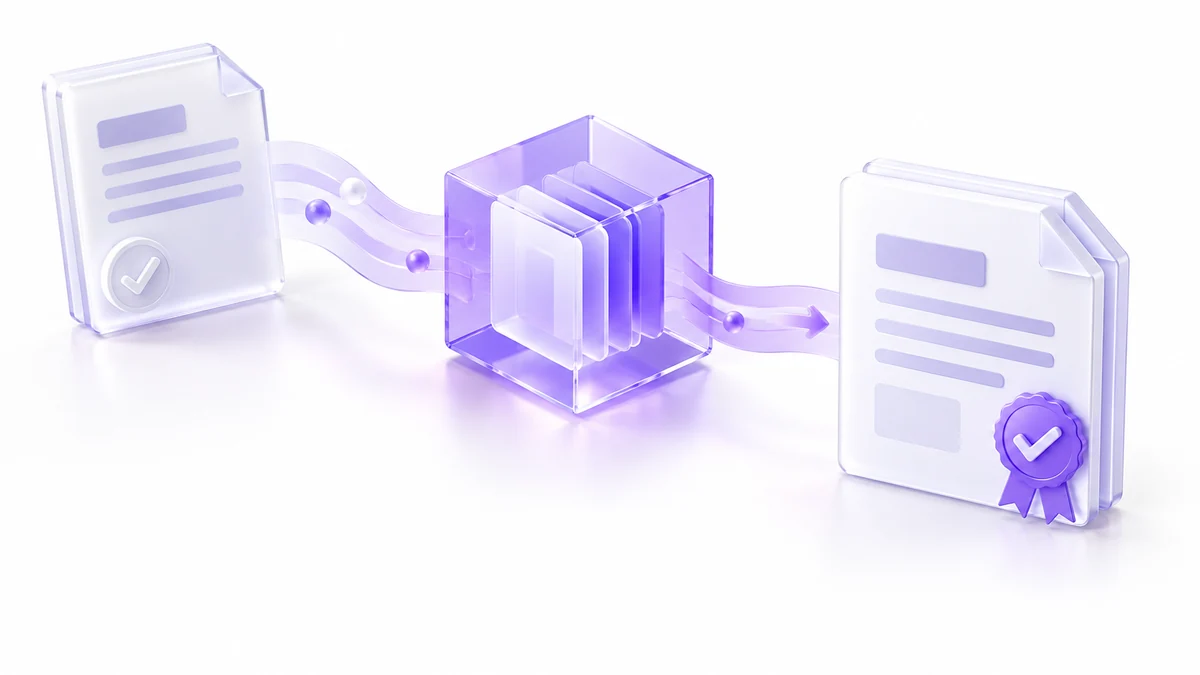
Who this workflow is for, and who it is not for
This is for a freelancer or solo consultant who already has an agreed brief and wants a faster first draft of the written proposal. It fits when your proposals follow a similar structure each time and your client material lives in Google Drive or Gmail.
It is not a good fit if the scope or price is still being negotiated, if the proposal is mostly a legal contract, or if your client agreement restricts putting their material into AI tools. In those cases, draft by hand or use your usual template, and get legal wording from a professional.
 Before you buyGoogle Workspace Flexible vs Annual: The Real Solo CostFlexible or annual billing for one seat: totals, break-even and cancellation rules.See the plans →
Manual baseline: what this replaces
Without Gemini, the usual path is: approved brief, proposal outline, first draft, a check of scope, price and dates, then a versioned client copy. The slow parts are the blank page and re-reading the brief and email thread to retype figures, which is also where transcription errors creep in. Gemini can shorten the outline and first-draft steps. It does not remove the check, and it does not change who is responsible for the numbers.
The approved brief template
Treat the brief as fixed before you open Docs. Keep it in one Google Doc so Gemini can reference it directly. If your intake process is not formal yet, our client intake forms guide shows one way to collect the inputs.
| Field | What to write |
|---|---|
| Client goal | The outcome the client wants, in their words |
| Deliverables | Each deliverable listed separately, with quantity |
| Exclusions | What is not included, stated plainly |
| Client inputs | What the client must provide, and by when |
| Milestones | Dates for each stage and the final delivery |
| Price and source | The exact figure, currency, tax treatment and where it came from, such as your rate card |
| Validity date | How long the proposal price stands |
The reference-file workflow in Docs
Google says Gemini in Docs can “draft and refine content in Google Docs using information directly from your files in Drive, Chat, Gmail, and the web.” You can point it at specific material by typing “@” or using the Sources button, to “ask Gemini to use specific files to write, edit, or refine content.” Source: Write & edit with Gemini in Docs
- Create a new Google Doc for the proposal.
- Reference only the approved brief and, if useful, one past proposal whose tone you want to match.
- Do not reference old briefs or long email threads. Gemini will draft from whatever you point it at, including an outdated figure.
The Gemini side panel can also summarize a document or answer questions about referenced files, which helps when you want to confirm what the brief says before drafting. Source: Collaborate with Gemini in Google Docs
Prompts that do not invent missing terms
The main risk in a drafting prompt is that the tool fills gaps with plausible terms. Name the fixed facts and tell it what to do when something is missing.
Using @{approved brief}, draft a proposal for {client}.
Sections: Overview, Goals, Scope, Exclusions, Timeline, Price, Next steps.
Copy deliverables, dates and price exactly as written in the brief.
If the brief does not state something, write "TO CONFIRM" instead
of guessing. Do not add guarantees, discounts or legal terms.
Tone: {tone}. Length: about {number} words.
For refinement, Google documents quick actions on selected text, “Rephrase, Shorten, Elaborate, Bulletize, or Summarize,” and tone options “More formal or More casual.” Use them on prose only.
Make the Overview section more concise and client-friendly.
Do not change any number, date, deliverable or exclusion.Review each suggestion before you accept it
Gemini proposes changes that you review. Google’s help page describes options to “Accept suggestion,” “Accept all,” or “Reject all.” Source: Write & edit with Gemini in Docs. For a proposal, accept suggestions one at a time in any section that contains scope, price, dates or terms. “Accept all” is reasonable only for purely stylistic edits to sections with no commitments. Google’s side-panel help also tells users to review suggested changes before applying them.
The human sign-off checklist
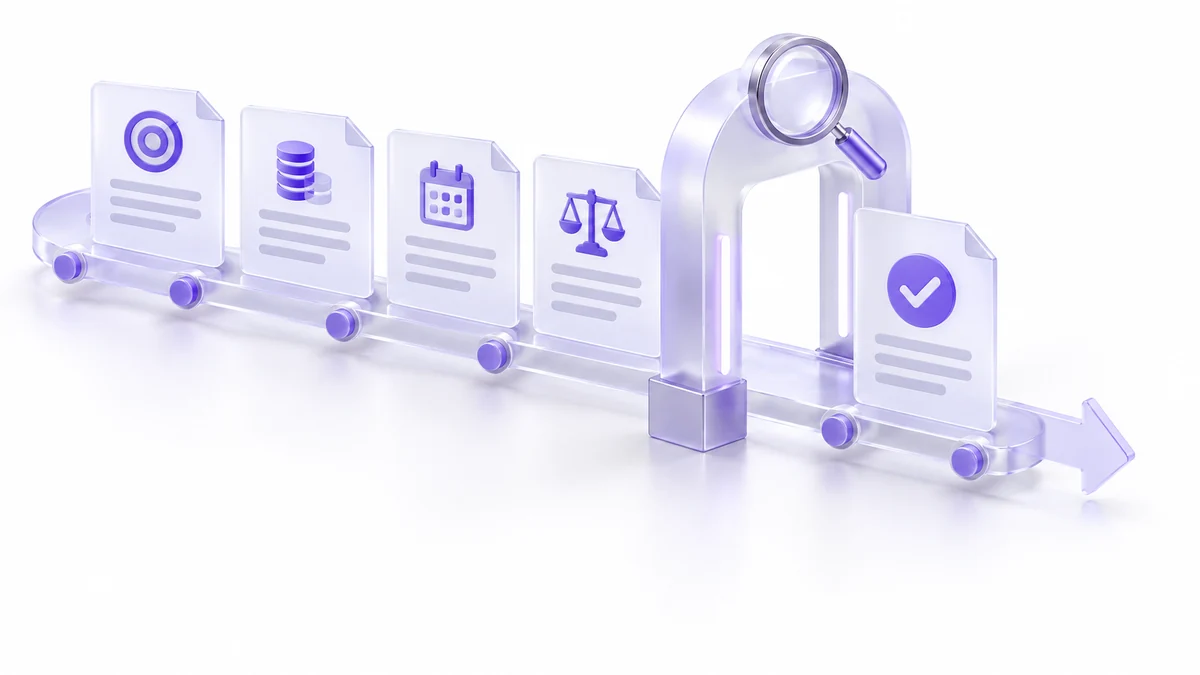
Check the draft line by line against the approved brief, not against your memory of it:
- Names. Client name, company name and contact are correct everywhere.
- Scope. Every deliverable in the brief is in the draft, and nothing extra was added.
- Exclusions. Every exclusion is stated, not softened.
- Price. Every figure matches the brief, including currency.
- Taxes. Whether tax is included or added is stated correctly.
- Dates. Milestones, delivery date and the proposal’s validity date match.
- Dependencies. Client inputs and deadlines they depend on are listed.
- Ownership. Who owns the work and when rights transfer matches what you offer.
- Confidentiality. Nothing from another client appears in the document.
- Legal language. Payment, cancellation and liability terms come from your own contract, not from Gemini.
- No “TO CONFIRM” left. Every placeholder is resolved or removed.
Version control and client-data boundaries
A Gemini-assisted draft is still an ordinary Google Doc, so use its version history. Name a version before and after each Gemini pass, so you can see what Gemini changed and what you changed. Create the client-ready copy only after the sign-off, and do not run Gemini on that final copy.
On data, Google’s data-protection page states: “We do not use your Workspace data to train or improve the underlying generative AI and large language models that power Gemini, Search, and other systems outside of Workspace without permission.” It also says Gemini in Docs and other Workspace apps “doesn’t store your prompt or the generated output without your permission.” Source: How Gemini in Workspace protects your data
- Account type matters. The same page says that if you share Workspace data with the Gemini app or Search from a personal account, it is processed under those services’ terms and “may be used for model training and improvement.” Workspace Experiments run under a separate privacy notice. Use a work account for client proposals.
- Feedback can be read. Google’s side-panel help notes that feedback you submit on responses “may be human readable.” Do not include client details in feedback.
- Your contract comes first. Check your client agreement before referencing their brief or emails in a Gemini prompt.
Plan eligibility and one-seat cost
Google’s help pages say the feature requires “an eligible Google Workspace or Google AI plan.” On the Google Workspace pricing page checked September 18, 2026, Business Starter lists “Gemini AI assistant in Gmail,” while Business Standard lists “Gemini AI assistant in Gmail, Docs, Meet, and more.” For a one-person business on Workspace, Business Standard is therefore the lowest listed business plan that names Gemini in Docs. Source: Google Workspace pricing
Checked September 18, 2026: Business Standard costs US$14 per user per month with a one-year commitment, or US$16.80 per user per month on the Flexible Plan, before applicable taxes. The Japanese annual-commitment price is ¥1,600 per user per month before Japanese consumption tax. These are regular rates, not temporary promotional prices. Confirm the price and commitment for your billing country before subscribing. Source: Google Workspace billing-plan comparison. Our Google Workspace flexible vs annual guide explains the trade-off.
When to draft manually or get legal review
- The scope, price or timeline is not yet agreed.
- The document is a contract or includes liability, indemnity or intellectual-property terms.
- The client is in a regulated field, or your agreement restricts AI use on their material.
- The proposal responds to a formal tender with mandatory wording.
- You are working across jurisdictions and are unsure which terms apply.
In these cases, Gemini can still tidy the wording of non-binding sections, but the binding terms should come from your own template or a lawyer.
Frequently asked questions
Can Gemini see my client’s email automatically?
Google documents drafting from “your files in Drive, Chat, Gmail, and the web,” and a separate “@” or Sources control for specific files. Reference only the approved brief so the draft comes from one agreed source.
Can I undo what Gemini changed?
You review Gemini’s suggestions and can accept or reject them. Version history in Docs also lets you return to an earlier version.
Does Google use my proposal drafts to train its models?
For Workspace data, Google states it does not do so without permission and does not store prompts or output without permission. Sharing data with the Gemini app from a personal account falls under different terms.
Which Workspace plan do I need?
On the pricing page checked, Business Standard is the lowest business plan that lists Gemini in Docs. Google also mentions eligible Google AI plans; confirm eligibility for your account before relying on it.
Sources and method
Drafting, reference-file, suggestion-review and side-panel behavior were checked on September 18, 2026 against the Google Docs Editors Help pages linked above. Data-handling statements come from Google’s Gemini data-protection page the same day. Plan features and regular USD pricing were rechecked on September 18 against Google’s pricing page and official billing-plan comparison; the latter also confirms the annual-commitment yen rate. Pricing is per user, with the commitment and tax basis stated above. The brief template, prompts, sign-off checklist and legal-review triggers are our editorial method, not Google features, and this article is not legal advice.
Read next