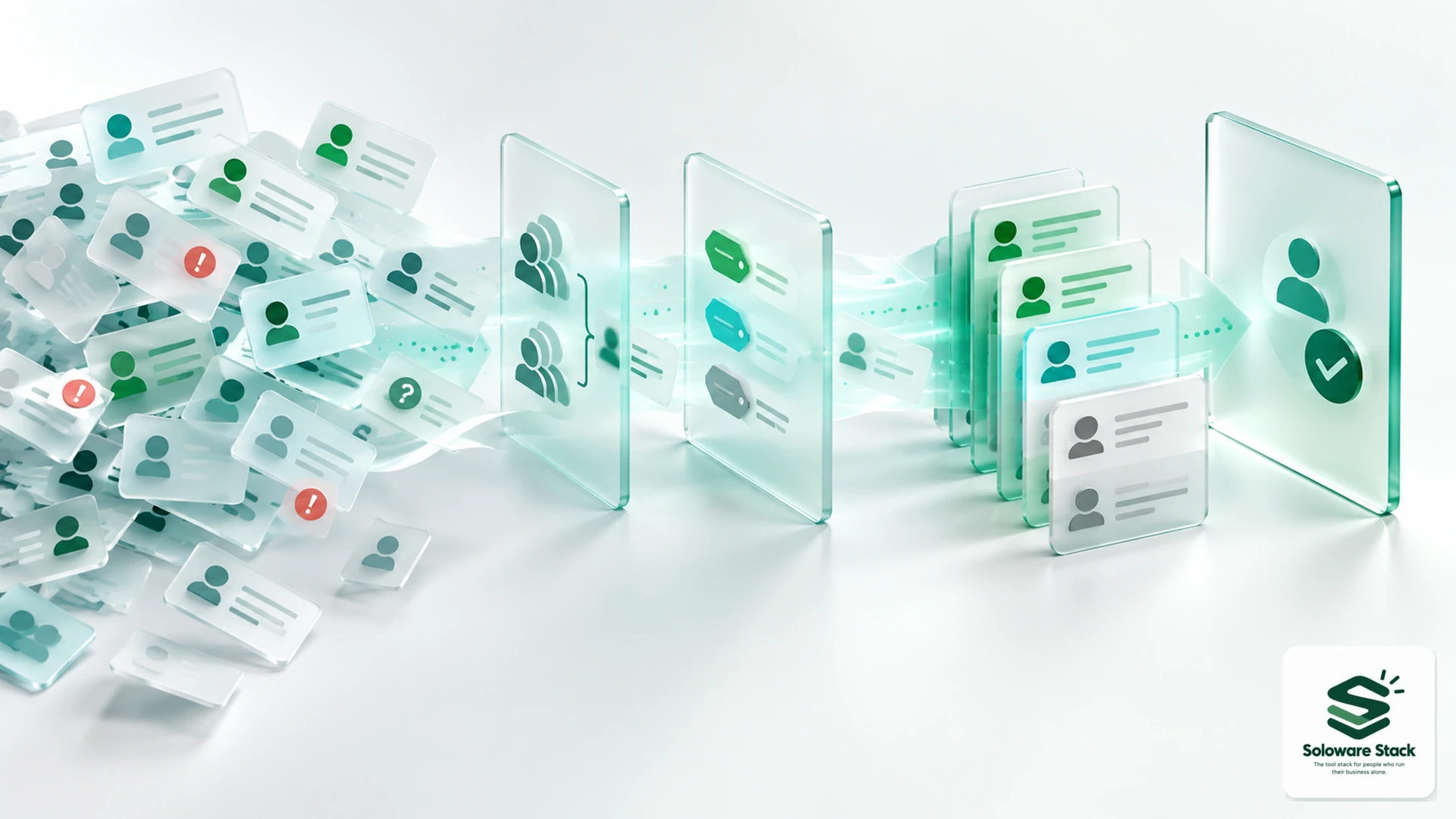
Gemini in Sheets is good at the boring half of lead handling: shaping an export into consistent columns, spotting duplicates, drafting formulas and grouping enquiries by theme. It is not a judgment engine. Keep the sheet small, classify with an explicit prompt, spot-check a sample before you trust a single label, and decide who to contact yourself. The feature starts at Business Standard, not Starter.
Editorial research checked September 16, 2026 against Google Docs Editors Help and Google Workspace Admin Help. Prices are Google’s USD list prices. This article contains no affiliate links.
The manual baseline
Most one-person businesses collect enquiries in more than one place: a website form, an inbox, a booking tool, sometimes a spreadsheet a client sent. The weekly routine usually looks like this.
- Export each source to CSV and paste it into one sheet, with columns that do not line up.
- Scan for the same person appearing twice under two email addresses.
- Read each row to work out what the enquiry is about and whether it is worth a reply.
- Sort by hand into something like now, later and no.
- Write the follow-ups.
Time one real cycle and count the rows. Steps one to four are what Gemini can help with. Step five stays yours. We are not offering a time saving: it depends entirely on how messy your exports are.
 Before you buyGoogle Workspace Flexible vs Annual: The Real Solo CostFlexible or annual billing for one seat: totals, break-even and cancellation rules.See the plans →
What Gemini can do inside Sheets
Opening “Ask Gemini” at the top right of a spreadsheet gives a side panel where you can prompt. Google documents it generating tables and templates, creating and fixing formulas, analysing data and generating insights, building charts, summarising Drive files and Gmail messages, and performing actions such as applying conditional formatting, creating pivot tables, adding dropdowns and sorting or filtering. It reads spreadsheet content you already have permission to view, and works best with native Sheets files, so convert an Excel export first. Source: Collaborate with Gemini in Google Sheets.
One practical quirk: Google states “You lose your conversation history when: You reload your browser. You close and reopen the spreadsheet.” Keep your prompts in a notes column or a separate document so a reload does not cost you the wording that worked.
Enhanced Smart Fill is the second tool worth knowing. It infers a pattern from examples and fills the rest of a column. Google’s documented limits are specific: it needs “at least 3 example rows containing 2 distinct column values”, “can only detect and support English values”, and “can only be triggered on text columns. It will not run on numeric and date columns.” It is desktop only. Source: Enhanced Smart Fill.
Which plan includes it, and what that costs
| Feature | Business Starter | Business Standard | Business Plus |
|---|---|---|---|
| Generate insights and analyze data | Not listed | Included | Included |
| Enhanced Smart Fill | Not listed | Included | Included |
| AI function | Not listed | Included | Included |
Personal Google accounts reach these features through a Google AI plan, with usage limits, or through the Workspace Experiments programme, which has its own terms. On Google’s USD list prices, Business Standard is $14 per user per month on an annual commitment against $7 for Starter, so the upgrade costs $7 a month or $84 a year; on flexible billing it is $16.80 against $8.40, or $100.80 a year. When we opened the public pricing page it was served in yen with a promotion, so confirm your own checkout price. Our flexible versus annual guide covers which billing plan to commit to.
Minimum safe columns
Before anything else, decide what the sheet is allowed to contain. A lead list is personal data, and the smallest useful sheet is the safest one.
| Column | Why it earns its place |
|---|---|
| Received | Date the enquiry arrived, for ageing and for deletion. |
| Source | Form, referral, inbox, event. Tells you what is working. |
| Name | Enough to address a reply. |
| Contact | One channel, usually email. Not three. |
| Enquiry summary | One or two lines in your own words. |
| Service | Which of your offers this is about. |
| Stage | New, replied, qualified, closed. |
| Next step and date | The only field that drives your week. |
Leave out free-text message dumps, anything a person disclosed about their health, finances or employer, and any field you cannot explain a business reason for. Delete rows on a schedule you decide, and keep the sheet out of shared drives that more people can open than need to.
Cleaning duplicates
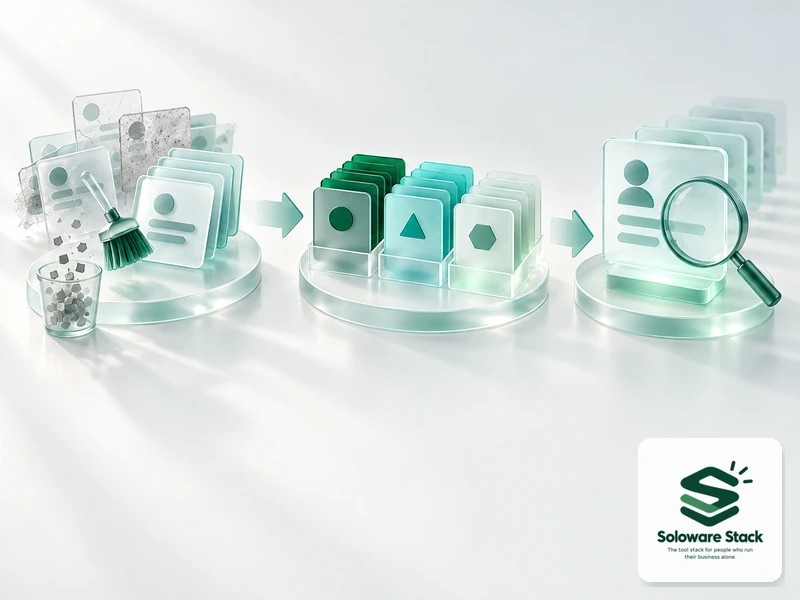
Ask for the formula rather than the answer, so the logic stays visible in the sheet. Useful requests are a normalised key, a duplicate flag and a review column.
- Normalise first. Ask for a helper column that lowercases and trims the email address, and another that strips punctuation from the company name.
- Flag, do not delete. Ask for a formula that marks the second and later occurrences of a key rather than removing rows, so you can see what was caught.
- Check near matches by eye. Two enquiries from one household or one company are not always the same lead.
- Keep the earliest received date when you merge, and note in the summary that a merge happened.
Formulas are auditable in a way that a one-off cleanup is not. If a duplicate rule turns out to be wrong in three weeks, you can read it and fix it.
A classification prompt that leaves the decision with you
Classification is where an assistant is genuinely useful and genuinely risky. Constrain it: name the categories, forbid invention, and require a reason and an uncertainty flag.
| Part | Wording |
|---|---|
| Task | Classify each row in the Enquiry summary column into exactly one Service value. |
| Categories | Use only: audit, retainer, workshop, out of scope. Do not create new categories. |
| Evidence | Base the label only on the text in that row. Do not infer from the company name. |
| Uncertainty | If the text does not clearly match one category, write unclear and say why in one short phrase. |
| Output | Write the label in the Service column and the reason in a Why column. Change nothing else. |
The unclear label is the important one. A classifier that is never unsure hides its errors in confident wrong answers, and those are the rows that cost you a client.
Formulas, charts and what they are for
Once the sheet is clean, ask for the small number of views that change your behaviour: enquiries by source this month, average days from received to first reply, count by stage, and the rows with no next step. Ask for charts of the same, and keep them on a separate tab so the data tab stays plain.
Two cautions. Ask for the formula behind any number you will quote, so you can see the range it covers. And check totals against the source export once, because a chart built on a filtered view can look authoritative while describing half your data.
Spot-check before you trust a label
- Pick ten rows at random, not the first ten and not the interesting ones.
- Read the original enquiry text for each and decide the label yourself.
- Compare and count the disagreements.
- If more than one in ten disagrees, fix the prompt or the categories and rerun; do not correct labels one by one.
- Review every unclear row by hand.
- Record the date and the sample result in a note on the tab, so you know when the labels were last validated.
Google’s own warning applies here: Gemini features “may suggest inaccurate or inappropriate information”, and are not to be relied on as professional advice. A sample check is how you turn that warning into a number you can live with.
Privacy and what Google says about your data
For work and school accounts, Google states that Gemini in Sheets and the other Workspace apps “uses your content in Google Workspace to provide more useful responses to your prompts and doesn’t use your content to train or improve Gemini or other generative AI models”, and that it “doesn’t store your prompt or the generated output without your permission”. Source: how Gemini protects your data.
Two limits are worth holding onto. Data you personally share with Gemini Apps or Search for Personal Intelligence follows those services’ terms and may be used for training. And participants in the Workspace Experiments programme, which is how personal accounts often reach these features, are covered by a separate privacy notice rather than the Workspace terms. If you handle enquiries from clients in a regulated field, check your own obligations before putting their details in any assistant’s reach.
Nothing is sent without you
The last step stays manual on purpose. Before any outreach, confirm three things for each row you are about to contact: the person actually asked to hear from you, the label is right, and the next step matches what you can deliver this week. Then write the message yourself, or draft it and read it in full before sending. A wrong label costs you an awkward email; an automated send on a wrong label costs you the relationship. If you are building the weekly habit of reviewing this queue, our weekly automation checkup is a place to put it, and our Notion and Airtable comparison covers when a spreadsheet stops being enough.
Frequently asked questions
Does Business Starter include Gemini in Sheets?
Google’s feature table lists the Sheets features for Business Standard and Business Plus, not Starter. Starter lists the Gemini app for quick answers.
Will Gemini read my whole spreadsheet?
It accesses spreadsheet content you have permission to view. That is a reason to keep the lead sheet minimal and separate from other client data.
Why did Enhanced Smart Fill not run on my column?
It runs on text columns only, not numeric or date columns, needs at least three example rows with two distinct column values, supports English values only, and works on desktop.
Can I ask it to email the leads?
Treat sending as a separate, manual decision. This article keeps outreach with the owner regardless of what any tool can trigger.
Is my lead data used to train Gemini?
For work accounts Google states it does not use your content to train or improve Gemini. Personal-account routes, including Workspace Experiments, have different terms.
Sources and method
Capabilities, limits, eligibility, data statements and prices were checked on September 16, 2026 against the Google pages linked beside each claim; the Docs Editors Help pages showed no update date and the Admin Help edition page showed September 10, 2026. The upgrade arithmetic is ours, based on Google’s published USD list prices. Features and eligibility change; confirm in your own account.
Read next