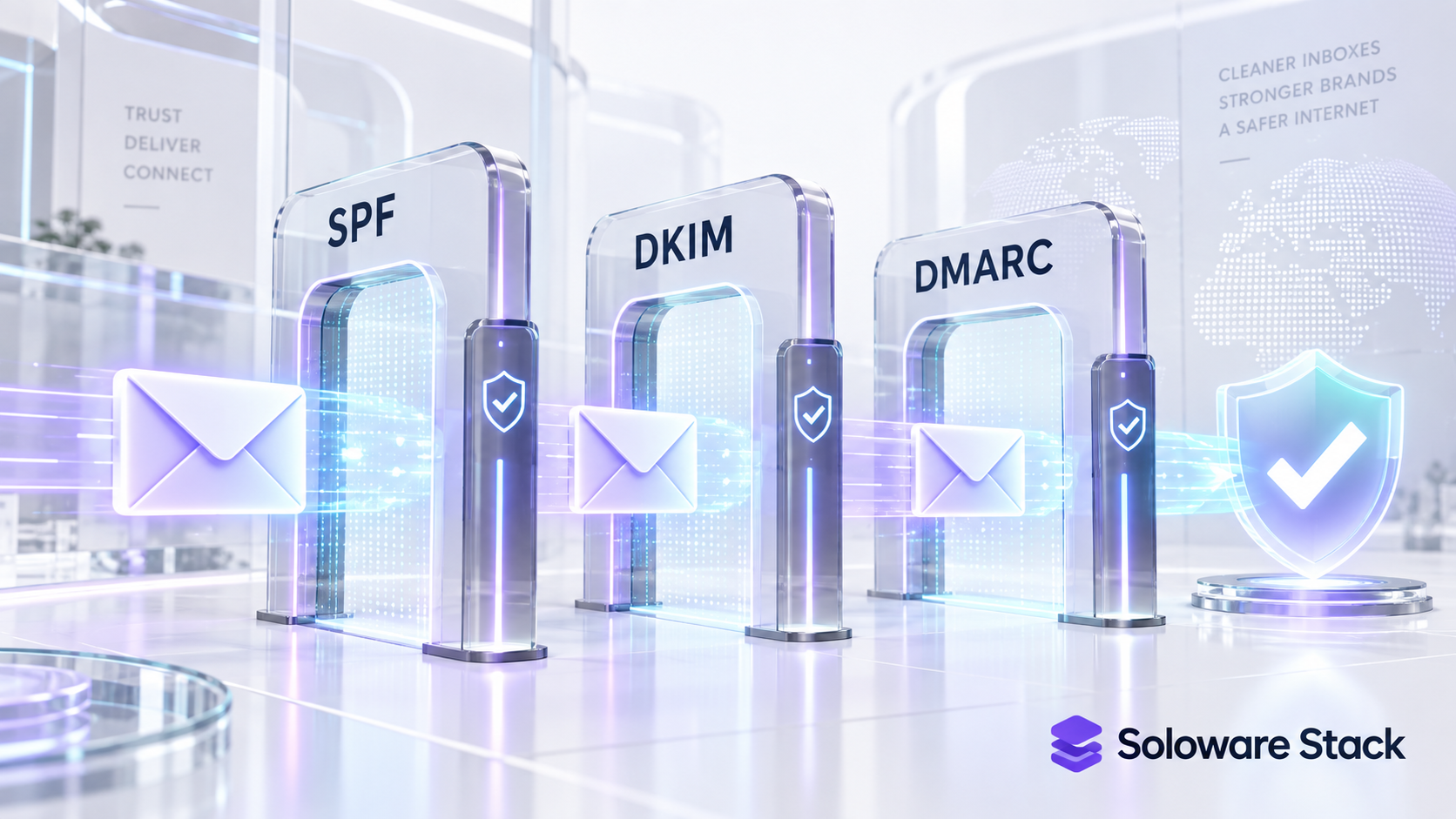
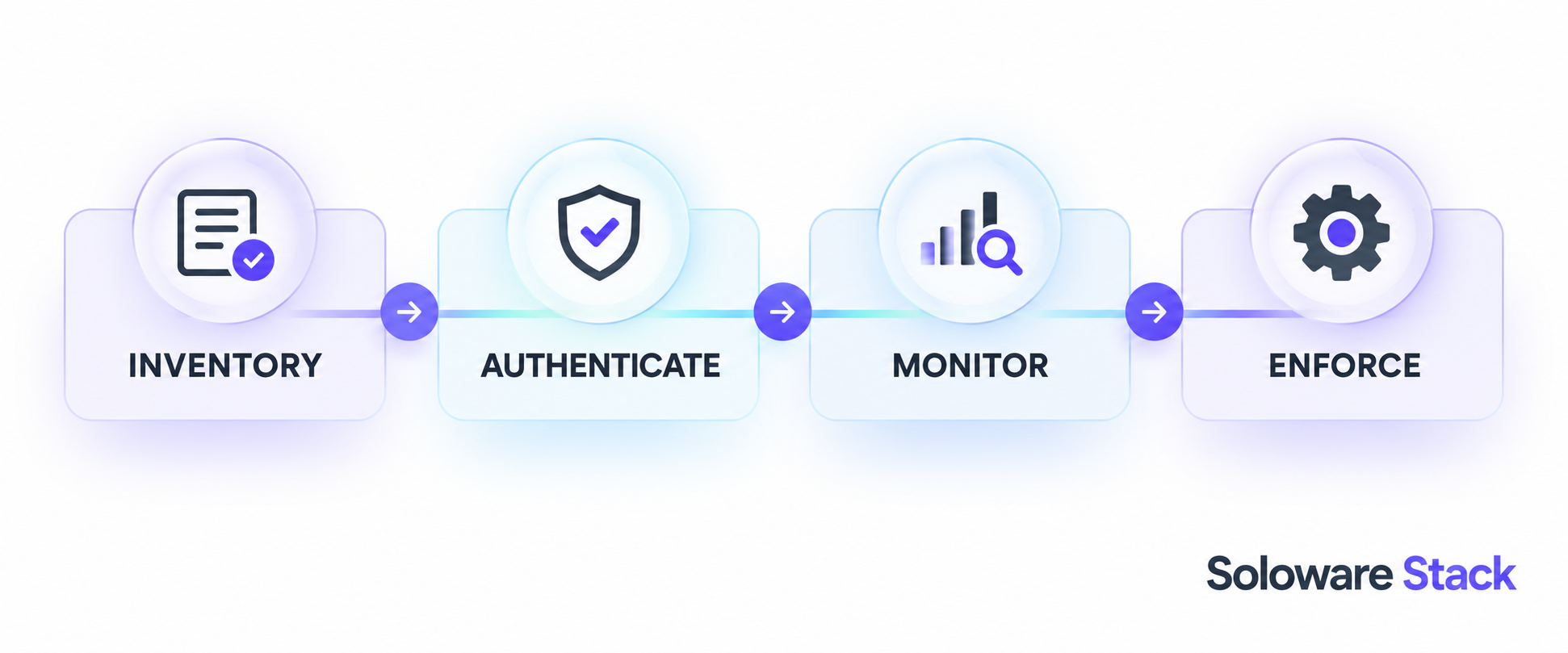
Do these in order and nothing breaks: list every service that sends mail as your domain, publish one SPF record that names all of them, generate and activate a DKIM key in the Admin console, then add DMARC at monitoring only. Wait 48 hours between authentication and DMARC, read the reports before you enforce anything, and write down what you changed. Authentication stops spoofing; it does not guarantee the inbox.
Editorial research checked September 11, 2026 against Google Workspace Admin Help and Gmail Help. Example records below are Google’s published examples using example.com. This article contains no affiliate links.
What each record actually proves
The three records answer three different questions, which is why partial setups fail in confusing ways.
- SPF lists the servers allowed to send mail for your domain. Google describes it as helping “prevent your outgoing email from being marked as spam by receiving email servers.” Source: Set up SPF.
- DKIM signs each message so the receiver can verify it was not altered and really came from your domain. Google: it “helps protect your domain against spoofing by authenticating your email with a DKIM signature.” Source: Set up DKIM.
- DMARC tells receivers what to do when a message fails. Google: it “tells receiving email servers what action to take on messages sent from your domain that don’t pass SPF or DKIM authentication.” Source: Set up DMARC.
DMARC also requires alignment, not just a pass. Google states that a message must pass either SPF authentication and SPF alignment, or DKIM authentication and DKIM alignment, which means the domain your recipients see in the From line has to match the domain that authenticated.
 Before you buyGoogle Workspace Flexible vs Annual: The Real Solo CostFlexible or annual billing for one seat: totals, break-even and cancellation rules.See the plans →
Step 1: inventory your senders before touching DNS
This is the step that prevents the classic failure, which is publishing a strict record and silently blocking your own newsletter. Write down every system that sends mail using your domain in the From line. For a one-person business the list is usually short but rarely just Gmail.
| Sender | What it sends | Authenticated how |
|---|---|---|
| Google Workspace | Your day-to-day mail | SPF include and DKIM key from the Admin console |
| Newsletter platform | Campaigns and automations | Its own SPF include and its own DKIM records |
| Invoicing or booking tool | Receipts, confirmations, reminders | Check whether it sends as your domain or its own |
| Website contact form | Form notifications | Often sends as the host’s domain; confirm before adding it |
| CRM or helpdesk | Replies to clients | Usually needs a verified sending domain |
For each row, find the provider’s own authentication instructions before you edit anything. A sender that only appears in the Reply-To header, or that sends from its own domain, does not belong in your SPF record.
Step 2: publish one SPF record, and only one
The rule that catches people is that a domain gets a single SPF record. If your newsletter provider tells you to add a record and you already have one for Google, you edit the existing record instead of adding a second.
For Google Workspace alone, Google publishes this value: v=spf1 include:_spf.google.com ~all. Additional senders are added to the same record as more include mechanisms, in Google’s example style v=spf1 include:_spf.google.com include:amazonses.com ~all. Google also states that “An SPF record can have up to 10 include: tags”, so consolidate rather than accumulate, and remove services you no longer use.
Publish it at your DNS host as a TXT record with the host field set to @ for the root domain, and keep Google’s recommended ~all rather than a hard -all while you are still discovering senders. Google says “It can take up to 48 hours for SPF authentication to start working.”
Step 3: generate and activate DKIM
DKIM is two actions in two places, and skipping the wait between them is the usual cause of a failed activation.
- In the Google Admin console, open Apps, then Google Workspace, then Gmail, then Authenticate email, and choose Generate new record.
- Choose a 2048-bit key. Google recommends it because “Longer keys are more secure than shorter keys”, and reserves 1024-bit for the case where “your domain host doesn’t support 2048-bit keys”. Leave the default selector prefix, which is google.
- Add the generated TXT record at your domain provider.
- Wait. Google states that “After adding a DKIM key, it can take up to 48 hours for DKIM authentication to start working”, and only then should you return and choose Start authentication.
If you use subdomains, Google tells you to check with your domain provider how to add a TXT record for a subdomain, and warns that an outbound gateway must not alter signed content. Verify by sending a message to an account elsewhere and reading its Authentication-Results header for a DKIM pass.
Step 4: start DMARC at monitoring, not enforcement
Google’s prerequisite is explicit: turn on SPF and DKIM first, and “Allow 48 hours after setting up SPF and/or DKIM before setting up DMARC.” Then publish a record at the name _dmarc.example.com, substituting your domain.
Begin with a policy of none, which asks receivers to report without changing delivery, and send the aggregate reports somewhere you will read them using the rua tag. Google’s documented sequence is to start with p=none, review the reports, then move to p=quarantine and finally p=reject, using the pct tag to apply a policy to part of your traffic while you roll out. Google’s own example of a finished record is v=DMARC1; p=reject; rua=mailto:postmaster@example.com, mailto:dmarc@example.com; pct=100; adkim=s; aspf=s. That is the destination, not the starting point.
Stay at monitoring long enough to see the senders that only fire occasionally: a quarterly invoice run, an annual renewal notice, a form you forgot. Moving to reject before those appear is how a solo business blocks its own mail.
One caveat on urgency. Gmail’s sender guidelines require SPF or DKIM for all senders, and require DMARC only for bulk senders, defined as 5,000 or more messages a day, where “Your DMARC enforcement policy can be set to none.” A one-person business is usually below that threshold, so DMARC is strongly advisable rather than mandatory. The same guidelines also require valid forward and reverse DNS, a TLS connection, spam rates below 0.3% in Postmaster Tools, and one-click unsubscribe on marketing mail. Source: Email sender guidelines.
Step 5: validate before you change anything else
- Check the records exist. Google recommends verifying with one of the free checking tools available online. Confirm one SPF record, the DKIM record at the google selector, and the DMARC record at the _dmarc name.
- Send real test mail. Mail an address at another provider and read the Authentication-Results header for SPF and DKIM passes.
- Send from every system on your inventory, not only from Gmail. A campaign, a receipt and a booking confirmation each prove a different path.
- Read the first DMARC reports. Look for legitimate senders that fail alignment. Fix those at the sender before you tighten the policy.
- Allow time between changes. Google’s 48-hour figure applies to DNS propagation and to authentication starting to work; changing three things in one afternoon makes the cause of a failure impossible to identify.
Step 6: write down what future-you will need
Email authentication breaks months later, usually after someone adds a tool or moves a domain. Keep a short record next to your other business notes.
| Field | Example |
|---|---|
| DNS host | Where the domain’s records actually live, and who can sign in |
| SPF record | The exact current value and which include belongs to which service |
| DKIM selector | google, plus any selector a second sender added |
| DMARC policy | Current policy, the reporting address, and the date you last changed it |
| Senders authorized | The inventory from step one, with the date each was added |
| Next review | A date to reread reports and remove retired senders |
Never store domain-registrar or Admin console credentials in that note. Record where the controls are, not how to open them.
What this does not do
- It does not guarantee inbox placement. Authentication is a requirement receivers check, not a promise about the spam folder. Content, sending history and complaint rates still decide.
- It does not stop lookalike domains. DMARC protects your domain, not a domain that merely resembles it.
- It does not fix a sender you forgot. Every enforcement step is only as safe as your inventory.
- DNS interfaces differ. Field names for host, type and value vary between registrars; use your provider’s instructions for the mechanics and Google’s for the values.
If your newsletter platform is one of the senders on your list, our Kit and Mailchimp comparison covers choosing that tool; whichever you use, it needs its own authentication records.
Frequently asked questions
Can I have two SPF records, one for Google and one for my newsletter?
No. A domain uses a single SPF record, and additional senders are added as more include mechanisms inside it. Google notes a record can have up to ten include tags.
How long do I wait before turning on DKIM authentication?
Google states it can take up to 48 hours after adding the DKIM key before authentication starts working, and to click Start authentication after that.
Should a solo business publish DMARC at all?
Google’s guidelines require it for bulk senders of 5,000 or more messages a day, and its DMARC guide recommends the monitoring-first rollout for everyone. Starting at p=none costs nothing in deliverability and shows you who is sending as your domain.
What does p=none actually change?
Nothing about delivery. It asks receiving servers to report on failures so you can find misconfigured senders before you enforce.
Do I still need SPF if DKIM passes?
Gmail’s guidelines require SPF or DKIM for all senders, but DMARC alignment can be satisfied by either, so having both gives you a second path when one breaks, such as when a message is forwarded.
Sources and method
Instructions and record values were checked against the Google Workspace Admin Help pages and Gmail sender guidelines linked beside each claim on September 11, 2026; the Admin Help pages displayed a September 10, 2026 update date. The three support.google.com addresses in our brief now redirect to knowledge.workspace.google.com, and the redirect targets are what we read. Confirm your own senders before publishing any record.
Read next