Gemini in Gmail is worth using for three jobs a solo operator repeats every day: catching up on a long thread, getting a first draft of a routine reply, and proofreading before an important send. It is included from Business Starter. It is not a substitute for reading the thread yourself when a reply commits you to a name, date, scope or price, and Google itself warns the output can be wrong.
Editorial research checked September 14, 2026 against Gmail Help, the Google Workspace Learning Center and Admin Help. Prices are Google’s USD list prices; your currency, tax and promotions may differ. This article contains no affiliate links.
The manual baseline
A one-person business reads sales enquiries, client questions, supplier updates and invoices in the same inbox. Without AI, a typical reply cycle is:
- Scan the inbox and decide what needs a reply today, using labels, stars or filters.
- Open a long thread and reread it to find the latest question and what was already agreed.
- Look up the details the reply depends on: a quote, a calendar, an earlier email.
- Write the reply, then reread it for tone and mistakes.
- Send, and set yourself a reminder if something is owed.
Time ten ordinary replies through those steps and note which step takes longest. That is your baseline, and it tells you which feature below is worth trying first. Google’s own manual tools for step one, such as labels, filters, stars and search operators, remain available and are described in its Organize and find email guide. We do not supply a time-saving figure, because it depends on your thread length and reply mix.
 Before you buyGoogle Workspace Flexible vs Annual: The Real Solo CostFlexible or annual billing for one seat: totals, break-even and cancellation rules.See the plans →
What you get on each Workspace edition
| Feature | Business Starter | Business Standard | Business Plus |
|---|---|---|---|
| AI Overview for email threads (summaries) | Included | Included | Included |
| Help me write | Included | Included | Included |
| Suggested replies | Included | Included | Included |
| Proofread | Included | Included | Included |
| AI Overview for Gmail search | Included | Included | Included |
| Help me schedule | Not listed | Included | Included |
Source: Get started with Google Workspace with Gemini. Personal Google accounts get these features through a Google AI Plus, Pro or Ultra plan with usage limits instead.
| Edition | Flexible | Annual commitment | One user, 12 months on annual |
|---|---|---|---|
| Business Starter | $8.40 | $7 | $84 |
| Business Standard | $16.80 | $14 | $168 |
| Business Plus | $26.40 | $22 | $264 |
For the inbox jobs in this article, Business Starter is enough. Standard adds Help me schedule and Gemini across Docs, Meet and Drive, which matters only if you use those. When we opened the public pricing page it was served in yen with a promotion, so treat the table as Google’s reference list. Source: Business editions. If you are deciding between monthly and annual billing, our Google Workspace flexible vs annual guide works through the break-even.
Three repeatable inbox jobs
1. Catch up on a long thread before you reply
Open the thread and choose “Summarize this email”. Google says the AI Overview “synthesizes key points and replies in the conversation” and can “suggest reminders for tasks with a due date”. Source: AI Overview conversation summaries. Use the summary to find where to look, then read the last two or three messages yourself before answering. A summary tells you what the thread is about; it is not evidence of what was agreed.
2. Draft a routine reply
For availability confirmations, receipt acknowledgements and standard follow-ups, open Help me write, describe the reply in one or two sentences, and refine with Formalize, Friendly or Shorten, or your own instruction. Google notes that it “proactively takes details from your other emails and Drive files” such as schedules. The draft stays a draft until you send it. Source: Draft emails with Gemini in Gmail.
Suggested replies are the lighter version: Gemini “can review an email that you receive and suggest a relevant response”, personalized to “the tone and style of your past written emails”, and you can edit before sending. Personalized suggestions are available in English only. Source: Use Suggested Replies.
3. Proofread before an important send
Proofread offers “advanced grammar, tone, and style suggestions”; you click underlined text to accept a change or choose Ignore. It is available in English globally, with German, Japanese and Spanish in early access only. Source: Proofread with Gemini in Gmail. Treat it as a second reader for wording, not for facts.
Input boundaries: what to keep out of the prompt
Gemini already sees mail and Drive files you can access, so the useful boundary is what you add to a prompt and what you ask it to decide.
- Do not paste secrets. Passwords, bank details, card numbers or government IDs have no place in a prompt, even though the draft never leaves until you send it.
- Do not ask it to set terms. Prompts such as “offer a discount that closes the deal” hand pricing judgment to a tool that cannot see your margins.
- Give the facts, not the conclusion. “Confirm the call on Tuesday 14:00 London time and attach nothing” is safer than “reply appropriately”.
- Remember what drafting can pull in. Because Help me write can use details from other emails and Drive files, read the draft for anything that belongs to a different client.
The pre-send approval checklist
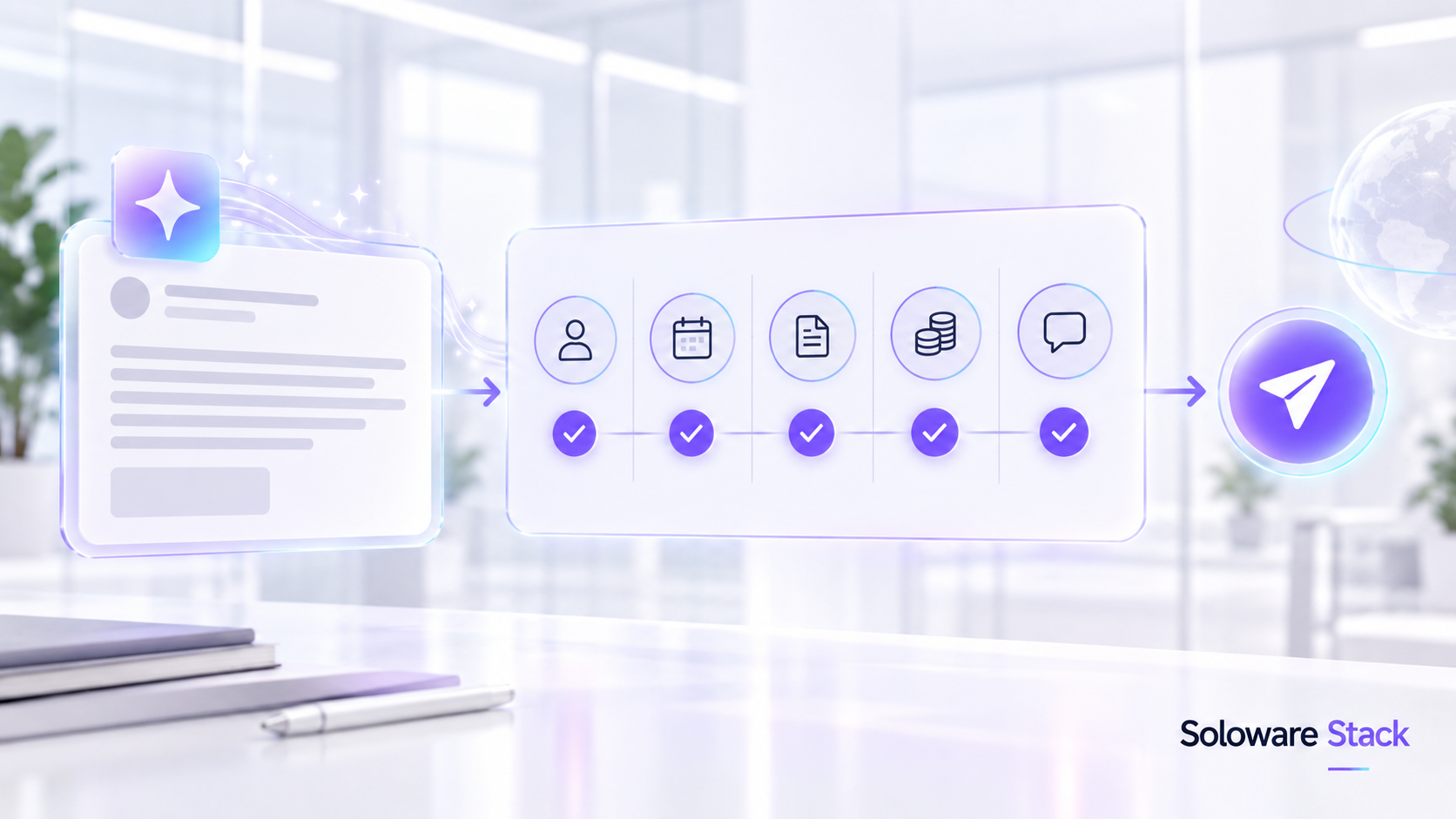
Run this on any AI-assisted reply that goes to a client, prospect or supplier.
| Check | What to confirm |
|---|---|
| Names | Recipient, company and anyone mentioned are spelled correctly and are the right people. |
| Dates and times | Day, date, time and time zone match your calendar and the sender’s request. |
| Scope | Nothing promises work, deliverables or revisions you have not agreed. |
| Price and terms | Every figure, currency, deadline and payment term matches your quote or invoice. |
| Tone | The reply sounds like you and suits the relationship, especially after a complaint. |
| Other clients | No detail, name or example came from a different conversation. |
| Recipients and attachments | To, Cc and attachments are what you intend; reply-all is deliberate. |
Privacy and security
For work accounts, Google states that Gemini in Gmail “doesn’t use your content to train or improve Gemini” and “doesn’t store your prompt or the generated output without your permission.” Source: How Gemini protects your data. Its Workspace privacy hub adds that content is “not human reviewed or otherwise used for Generative AI model training outside your domain without permission”, that Gemini “only retrieves relevant content in Workspace that the user has access to”, and that existing data loss prevention rules apply to Gemini output inserted into covered services. The same hub lists retention for Gemini conversation history in Workspace as “90 days to indefinite, as determined by admins”, so check that setting in your own admin console. Source: Generative AI in Google Workspace Privacy Hub.
Two limits are worth knowing. If you personally connect data to Gemini Apps or Search for Personal Intelligence, Google says that data follows those services’ terms and may be used for training. And because Gemini can read what you can read, anyone who can sign in to your mailbox can ask it about your mail, so account security still comes first.
Accuracy: what Google warns you about
Google’s help pages repeat the same caution: “Gemini features may suggest inaccurate or inappropriate information”, and users should not rely on them “as medical, legal, financial or other professional advice.” Language support is also narrower than Gmail itself: Help me write and conversation summaries support English, French, German, Italian, Japanese, Korean, Portuguese and Spanish, while “For other Google Workspace with Gemini features, English is the only supported language.” Source: Supported languages.
When a manual reply is still safer
- Price negotiation, discounts or change requests, where a word choice becomes a commitment.
- Complaints, disputes and refund requests, where tone and exact wording carry weight.
- Anything legal, tax, medical or financial, which Google explicitly says not to rely on it for.
- Messages containing someone else’s sensitive personal data, where you want to control every word.
- Threads in a language Gemini does not support, or with mixed languages.
- Any case where you have only read the summary. Read the thread, then decide whether to draft with help.
You can turn the features off through Workspace smart features in Gmail settings if you prefer to write a particular kind of mail entirely by hand.
Frequently asked questions
Which Workspace edition do I need for Gemini in Gmail?
Summaries, Help me write, suggested replies and proofreading are listed from Business Starter. Help me schedule starts at Business Standard.
Does Gemini send emails for me?
No. Help me write and suggested replies produce text you can edit; you choose Send.
Can Gemini see my other emails when drafting?
Yes. Google says Help me write can use details from your other emails and Drive files, limited to content you already have access to.
Is my email used to train Gemini?
For work accounts, Google states Gemini in Gmail does not use your content to train or improve Gemini, and the Workspace privacy hub says content is not used for training outside your domain without permission.
Can I trust the thread summary?
Use it to orient yourself, then read the relevant messages. Google warns summaries may be inaccurate, and the summary is not a record of what was agreed.
Sources and method
Features, editions, languages, privacy statements and prices were checked on September 14, 2026 against the Google pages linked beside each claim. Most Gmail Help articles did not display an update date. The twelve-month totals are our arithmetic on Google’s published USD list prices. Features and eligibility change; confirm in your own account before relying on them.
Read next