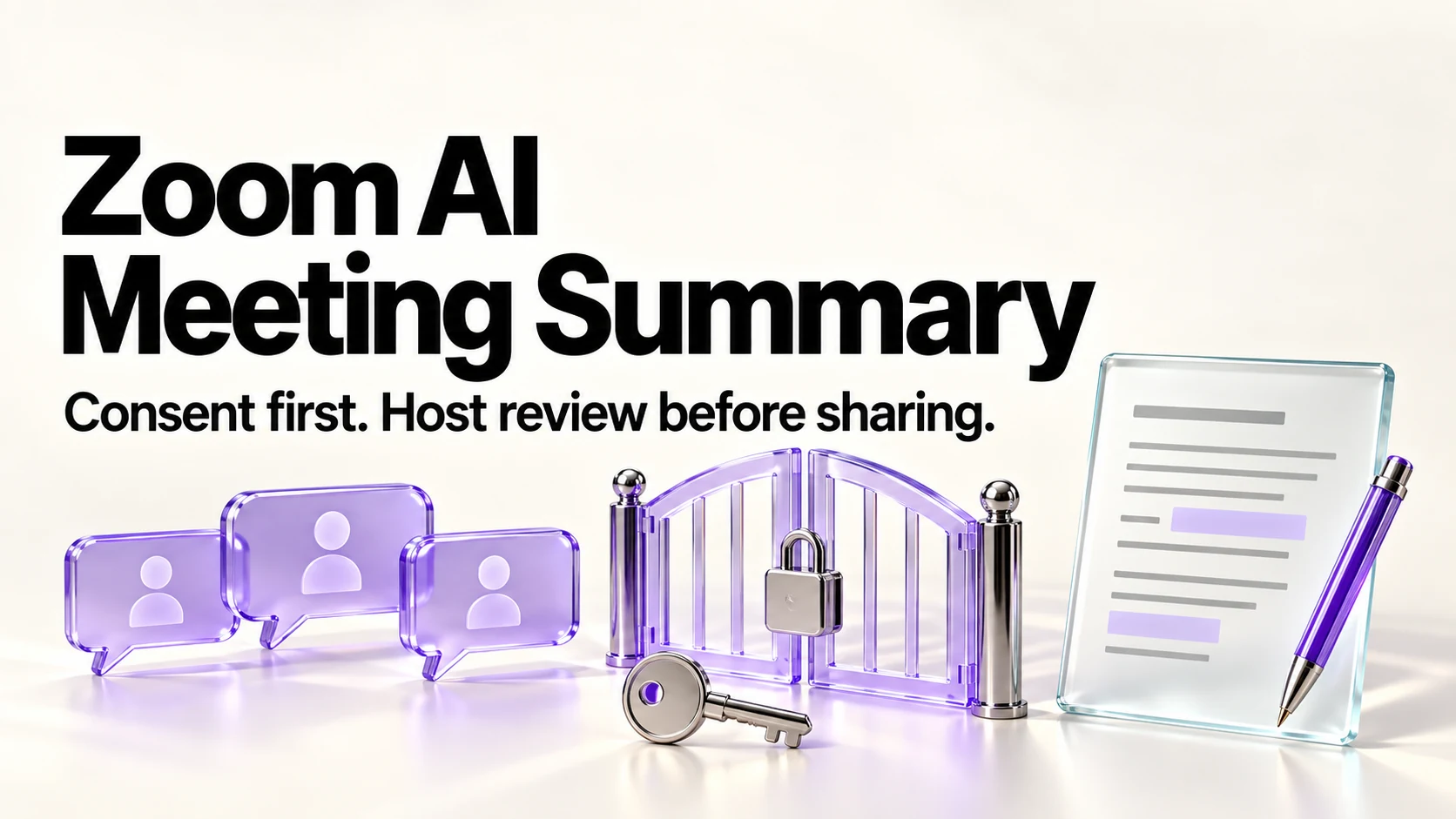
Zoom’s AI meeting summary is worth turning on once you have a consent script you actually say out loud, not just a feature you switch on. It can help draft the write-up, but decisions and action items still need your own check against what you remember, auto-start must be off and automatic sharing restricted to the host before the call, and some calls should never go through it at all. Get consent first, verify the summary second, then send.
Editorial research checked September 17, 2026 against Zoom’s Support Center and product pages. This article is based on Zoom’s documented behavior, controls and limits. The September 21, 2026 follow-up checked start, sharing, editing and retention controls. The original research noted “AI Companion” support terminology alongside “ZoomMate” marketing; current support wording also includes “Zoom AI” and “ZoomMate.” See the note below. This article contains no affiliate links.
Manual baseline: what this replaces
Without an AI summary, a solo consultant capturing a client call today is either typing notes live while also trying to listen, or relying on memory afterward to reconstruct decisions, owners and deadlines for a follow-up email. Both cost attention during the call itself, and both are lossy: a decision made in passing, or a number stated once, is easy to lose. An AI-generated summary trades that live note-taking effort for a review step after the call. It does not remove the need to get the details right.
Enablement
Zoom’s support documentation describes meeting summary as a host-initiated, per-meeting feature: “Meeting summary uses AI technology, which may include third-party models, and allows meeting hosts to initiate an AI-generated summary of their meeting.” Before the call, turn off auto-start and restrict automatic sharing to the host as described below. After all participants agree, a host hovers over the AI icon during the meeting, selects the “Meeting summary” checkbox, and clicks “Start Zoom AI.” Source: Using Meeting Summary with AI. The documented license requirement is “a Licensed user on a Zoom Workplace Pro, Zoom Workplace Pro Plus, Zoom Workplace Business, Zoom Workplace Business Plus, Zoom Workplace Enterprise, Zoom Workplace Enterprise Plus, or Enterprise Bundle account” — confirm your own account meets this before promising a client an AI-summarized call.
Check the entitlement in your account. The original support research used AI Companion terminology; the pages rechecked now also use Zoom AI and ZoomMate. The product page lists ZoomMate Basic with Workplace Basic, including three hosted meeting summaries per month, and a paid ZoomMate tier with 2,200 monthly AI credits. No numeric per-seat price was available on the pages checked, so no add-on dollar price is quoted here. The eligible Workplace plans documented above have their own meeting-summary entitlement; do not assume every meeting summary requires a separate ZoomMate purchase. Confirm the applicable limits and controls in your account. Source: ZoomMate product page.
The consent script
Zoom documents a custom message setting for AI in meetings. Do not rely on the exact consent-dialog timing or camera and microphone behavior as a consent safeguard. Before manually starting the summary, explain that AI will process the call, who will receive the recap and how records will be retained, then obtain agreement from every participant. If anyone declines, leave summarization off. This is our editorial consent-first workflow; check the notice and consent controls available to your account. Source: Zoom meeting-summary settings.
What data is processed
Zoom says meeting summaries use speech-to-text data. Depending on settings, screen-share text extracted with OCR and meeting-chat context can also contribute; do not equate summary generation with a guarantee that no other meeting data is stored. Zoom states that communications-like customer content is not used to train its or third-party AI models, and describes third-party zero-retention arrangements with limited trust-and-safety exceptions. Source: How Zoom AI features handle your data. Review enabled inputs and retention separately, and follow any client agreement restricting third-party processing.
Recipient controls
For a review-before-send workflow, open the web portal’s Zoom AI meeting-summary settings before the call. Disable Auto-start when meetings start and choose Only meeting host under Automatically share summary with. Zoom says the host-only change applies to newly created meetings, so inspect existing scheduled and recurring meetings individually. Keep live summary sharing off, and verify that administrator locks or email-only delivery do not prevent the review workflow. If you cannot confirm these controls, leave summarization off for that call. Source: Zoom enablement and sharing settings. Retained transcripts have separate access controls and cannot be shared directly through Zoom; host and organizational access can be further restricted by admins. Source: Transcript retention controls.
Decision and action verification
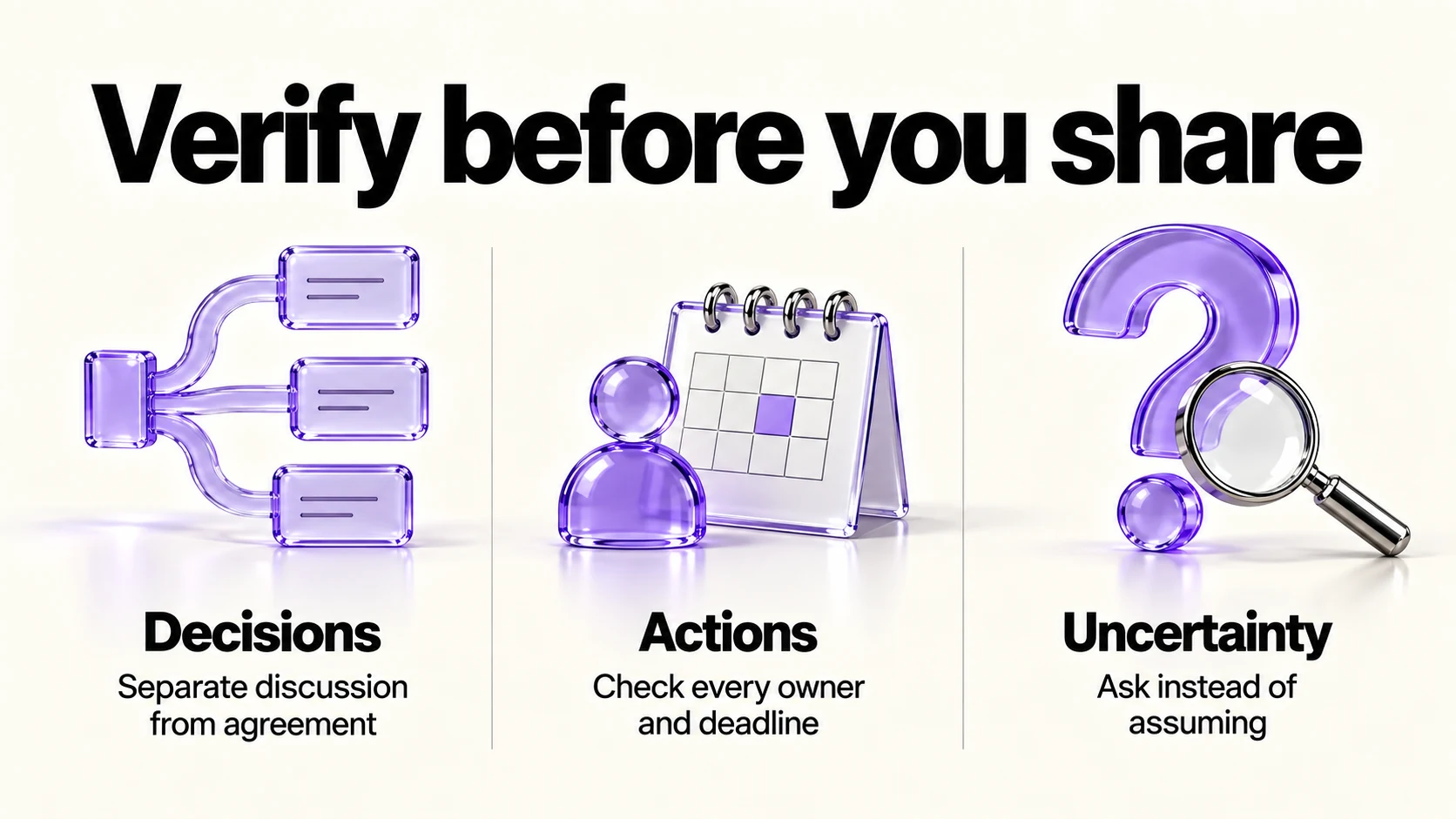
Treat the generated summary as a first draft of what happened, not a transcript you can forward unread:
- Read it against your own memory of the call before it goes anywhere, especially the decisions and numbers.
- Check every action item’s owner and deadline. A summary can misattribute who agreed to do what.
- Confirm figures and dates verbatim against what was actually said, the same way you would check a drafted proposal.
- Flag anything you cannot verify as a question in your own follow-up, rather than stating it as settled.
After checking the content, the host can open Summaries, then My Summaries in the Zoom web portal, select the meeting, choose Edit and Save the corrections. Only then use Share and enter the intended recipients. If account restrictions prevent sharing, use a separately reviewed follow-up through your approved channel. Editing cannot recall a summary already delivered, which is why host-only automatic sharing must be set before the meeting. Source: Zoom summary editing and sharing.
Retention and deletion
Summary retention and transcript retention are separate. Zoom offers auto-delete settings that move summaries to Trash after a chosen number of days; check the subsequent Trash handling too. Source: Summary retention settings. For transcripts, administrators control whether retention is available and whether hosts can view or delete records; hosts can decide at meeting level whether to retain a transcript when allowed. Source: Transcript retention controls. Authorized users can search, download and delete retained transcripts. Source: Transcript access. These pages do not establish an automatic transcript expiry. Set and verify a deletion process for each record type, including downloaded copies, to meet the client’s agreed retention period.
Sensitive-meeting exclusions
No Zoom page checked for this article states a policy for excluding privileged or confidential meetings from AI summarization; this is editorial guidance, not a documented Zoom feature. Do not enable meeting summary for calls covering another client’s confidential information, legal or HR matters, unreleased financial figures, or anything a participant would reasonably expect to stay off any record. When in doubt, ask before the call starts, not after it has already run through the AI system.
Frequently asked questions
Do participants have to consent before an AI summary is generated?
For this workflow, obtain every participant’s agreement before the host manually starts AI. Zoom documents custom notice controls; confirm exact dialog timing and camera/microphone conditions in your own account. A notice alone does not establish that your client’s consent requirements have been met.
Who gets the summary by default?
The recipients depend on host and administrator settings. Choose host-only automatic sharing before the call, check pre-existing meetings separately, and edit and save the summary before manually sharing it. Transcript permissions are separate from summary recipients.
Does Zoom use my call content to train its AI models?
Zoom states it does not use audio, video, chat, screen sharing, attachments or similar customer content to train its own or third-party AI models, and describes zero-retention arrangements with third-party AI providers, with limited trust-and-safety exceptions.
Is this the same thing as “AI Companion”?
The original research found AI Companion support wording alongside ZoomMate marketing. Current support pages also use Zoom AI and ZoomMate. Older controls may not map unchanged to every current plan; check your own account’s interface and entitlement.
What does it cost?
Zoom’s product page lists three free hosted meeting summaries per month and a paid tier with 2,200 monthly AI credits. Its numeric per-seat price was not readable in our check. Eligible Workplace plans also have meeting-summary access under the support documentation; verify whether your account needs any additional purchase. Source: ZoomMate product page.
Sources and method
Original research was completed September 17, 2026. On September 21 we rechecked Zoom’s meeting-summary settings, use/edit/share instructions, transcript controls, data-handling pages and ZoomMate product page. No numeric ZoomMate price was verified. The consent script, verification checklist and sensitive-meeting exclusions are editorial recommendations. Account-specific controls, entitlements and deletion behavior still need confirmation before a client call.
Read next