
Ask one question first: does this payment belong to a named client, or to anyone who clicks? A Payment Link is a reusable public checkout, good for a fixed-price offer, a tip jar or a self-serve subscription. An invoice is a record addressed to one customer, with terms, a due date, partial payments and an audit trail. Both take card payments with no code, and neither is a contract.
Editorial research checked September 11, 2026 against Stripe documentation. Some Stripe pages were served in Japanese from our location; quoted wording is translated and the page is named beside each claim. No affiliate links, and nothing here is legal or tax advice.
The difference is who the payment is addressed to
Stripe publishes its own comparison of the two products, and the first row is the one that decides most cases. Invoicing is for collecting “one-time or recurring payments from a specific customer.” Payment Links are for selling a product or subscription, or accepting donations, from “anyone who is given the link.” Source: Stripe Payment Links documentation.
The second decisive row is reuse. Stripe states that an invoice cannot be reused, though it can be duplicated for another customer with the details changed, while a payment link “can be reused multiple times for multiple customers, or limited in the number of purchases.” So a link is an offer you publish once, and an invoice is a document you issue per engagement.
Everything else follows from those two facts. If you find yourself editing a payment link for each client, you wanted an invoice. If you find yourself copying the same invoice with the same amount to strangers, you wanted a link.
What each one does, from Stripe’s own comparison
| Capability | Invoicing | Payment Links |
|---|---|---|
| Customer | A specific person or business. | Anyone given the link. |
| Reuse | Not reusable; can be duplicated for another customer. | Reusable by many customers, or limited to a number of purchases. |
| Sharing | Email from the Dashboard, a copied invoice link, a PDF, or automatic charging of a saved payment method. | Copied link, QR code, or an embeddable buy button on your site. |
| Appearance | Editable template: your logo, brand colours, payment terms, notes and footer. | Limited customization: preset fonts and corner radii, plus logo, background and button colours. |
| Recurring | Subscription invoices through Stripe Billing. | A link can be created for a subscription price. |
| Chasing payment | Automatic collection, including retries and reminder emails. | Revenue-recovery features apply to subscription links. |
| Partial payments and payment plans | Supported. | Not supported. |
| Customer chooses the amount | Not supported. | Supported. |
| Customer edits quantity | Not supported. | Supported. |
| Quotes that convert to an invoice | Supported. | Not supported. |
| Reconciliation | Automatic reconciliation for bank payments. | Simple reconciliation using URL parameters. |
Both support 40 or more payment methods managed from the Dashboard, more than 30 languages, coupons and Stripe Tax.
Five cases, decided
A fixed-price public offer
A one-hour audit at a published price, a template pack, a workshop seat. Use a Payment Link. You create it once from a product and price, share it by link, QR code or a buy button, and it keeps working for every buyer. Stripe’s creation flow is Dashboard, Payment Links, New, then pick or add a product. Source: creating payment links.
A named client paying a deposit
Use an invoice. The client’s name, your terms and the amount belong on one document, and Stripe’s invoice lifecycle gives you the record: a draft you can still edit, then a finalized open invoice whose details are locked, then paid, void or uncollectible. Finalized invoices cannot be deleted; you void them, which “keeps an audit trail” and a searchable number. That is exactly the property a deposit dispute needs. Source: how Invoicing works.
A monthly retainer
Either can take the money, and the difference is who drives it. Subscription invoices through Stripe Billing arrive on a cycle with automatic collection, retries and reminders. A subscription payment link lets the client sign themselves up. Choose invoices when the retainer is negotiated per client; choose a link when the plan is a published offer anyone can join.
Pay what you want, tips or donations
Only Payment Links do this. Stripe’s creation flow offers a “customers choose what to pay” model with optional suggested amounts and a minimum and maximum, where the default maximum is 10,000.00 USD and can be raised through support. Stripe notes this pricing model does not currently support recurring payments, and links to its requirements for accepting tips or donations.
You need partial payments or a payment plan
Use an invoice. Stripe’s comparison marks partial payments and payment plans as supported for Invoicing and not supported for Payment Links. Splitting a project fee across milestones is invoice work.
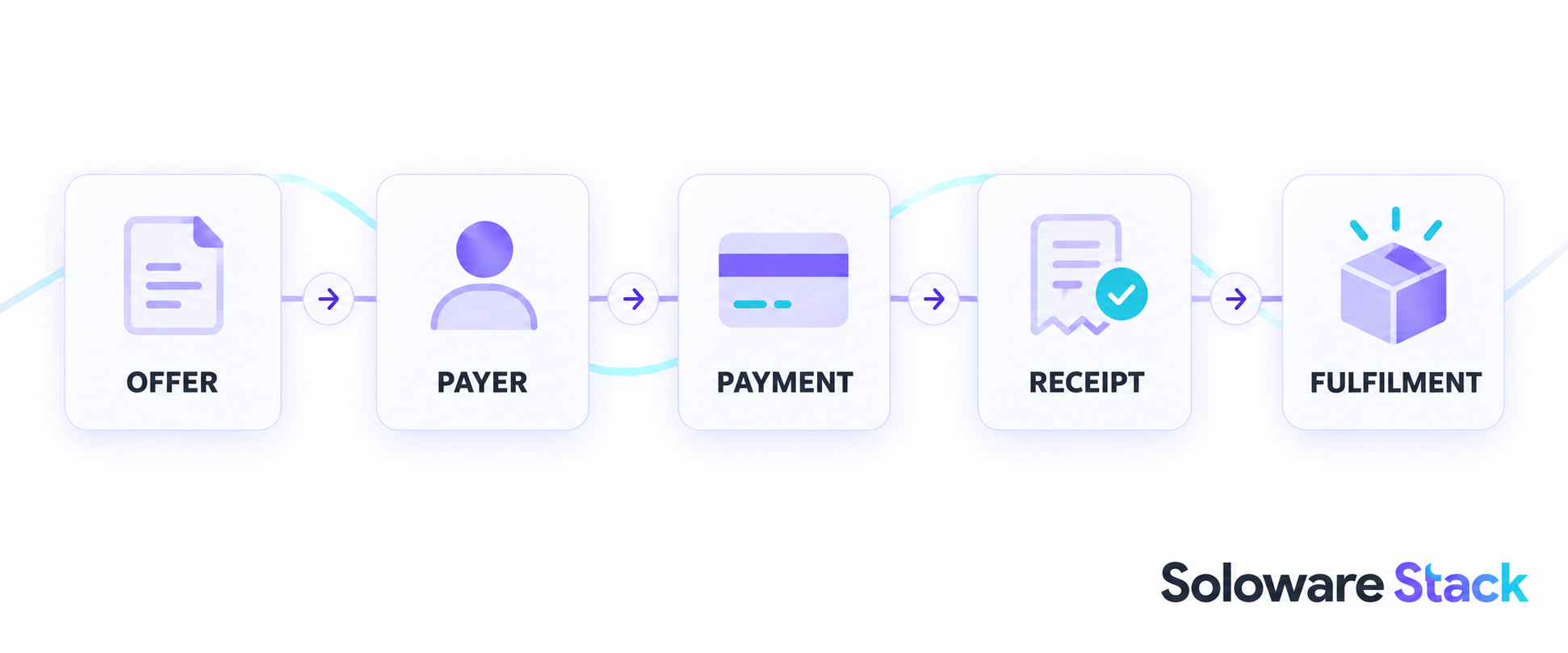
The evidence trail, end to end
For a solo business the record matters as much as the money. Trace five things for every payment: the offer, the payer, the payment, the receipt and the fulfilment.
- Offer. A link is the offer itself and can be deactivated when the price changes. An invoice states the offer per client, with terms and a due date.
- Payer. Stripe notes that one-time payment-link payments use a guest customer unless you specify one, while subscriptions and saved payment methods create a customer record. Invoices always attach to a customer.
- Payment. Both appear in the Dashboard payments list. Payment-link analytics such as views, sales and revenue can lag up to 18 hours and are not available for links with recurring prices.
- Receipt. Payment Links send automatic email receipts, and receipts can also be sent manually.
- Fulfilment. After a link payment you can show a custom confirmation message or redirect to your own page. Invoices give the client a hosted page and a PDF.
Sources: after a payment link is paid and the Invoicing overview above.
Refunds and corrections work differently
Refunding either one is the same Dashboard action: open the payment, choose Refund payment, accept the full amount or enter a partial one, and select a reason. Stripe says refunds “typically take 5 to 10 business days to appear on the customer’s statement”, and its refunds documentation states that the processing fees from the original transaction are not returned. Budget for that before you promise a full refund.
Invoices add a second tool. A credit note reduces an open or paid invoice without voiding it, and on a paid invoice the amount can be refunded to the original payment method, credited to the customer’s balance, or recorded as a credit handled outside Stripe. Stripe also advises checking local regulations on correcting, cancelling or voiding invoices and consulting legal counsel. For anything with tax consequences, that advice is the point, not a footnote.
What each one costs
Stripe states that the Payment Links system usage fee is free, so a link costs you the payment processing on the transaction and nothing extra. Invoicing is priced per paid invoice: 0.4% on the Starter plan and 0.5% on Plus, with no fixed or setup fee, and Stripe Payments processing applies on top. Subscription billing can bring Stripe Billing pricing into the picture.
Card processing rates are set per country, so this article does not quote one. When we opened Stripe’s pricing page from Japan it showed the Japanese rate, and the United Kingdom page showed a different rate again with separate surcharges for European and international cards and for currency conversion. Read the pricing page for your own country before you price a service. Source: Stripe Invoicing pricing; Payment Links product page.
Neither replaces a contract
Once you can collect payments, decide where invoices and transactions will be reconciled. If you need an accounting platform as well, use our FreshBooks vs QuickBooks Online comparison to shortlist a workflow with the accountant access you need.
A payment link proves someone paid. An invoice proves you asked a named client for a specific amount on specific terms. Neither establishes scope, revisions, intellectual property or what happens when a project stalls. Keep the agreement in its own document and treat the Stripe record as evidence of payment, not of what was promised. If you need proposals and contracts in the same place as billing, a client-management product is the better shape; see our HoneyBook vs Dubsado comparison. If you mainly need clean invoicing, our Wave vs Zoho Invoice comparison covers dedicated tools.
Frequently asked questions
Can one payment link serve several clients?
Yes. Stripe describes payment links as reusable by multiple customers, with the option to limit the number of purchases.
Can I edit an invoice after sending it?
Only in part. Once finalized, an invoice is open and most details are locked; substantial changes mean issuing a new invoice, and cancelling means voiding rather than deleting.
Which one handles subscriptions?
Both. Recurring invoices come from Stripe Billing subscriptions; payment links can be created for a recurring price so customers subscribe themselves.
Do I get a receipt automatically?
Payment Links list automatic receipts as supported, and receipts can also be sent manually from the Dashboard.
Is there a fee just for using Payment Links?
Stripe states the Payment Links system usage fee is free. Payment processing still applies, and invoices carry a per-paid-invoice percentage.
Sources and method
Statements were checked against the Stripe documentation and pricing pages linked beside each claim on September 11, 2026. Several pages were served in Japanese from our location and are quoted in translation. Fees and features change by country and over time; confirm both before quoting a client.
Read next