Gemini in Drive is a finder and a summarizer, not a filing system. Google says it can search and retrieve files, summarize files and folders, and synthesize information across several files, on an eligible Google Workspace or Google AI plan. It may help locate a contract, but you must verify which version is authoritative. It will not fix a Drive where three folders contain “final” files, and it does not change who can see what.
Original research dated September 21, 2026; text revised September 21, 2026. Claim-specific rechecks are identified in Sources and method. This article contains no affiliate links.
Who this is for
Your client work lives in Drive, across folders you created at different times with different naming habits, and finding the right file takes longer than reading it.
 Before you buyGoogle Workspace Flexible vs Annual: The Real Solo CostFlexible or annual billing for one seat: totals, break-even and cancellation rules.See the plans →
Manual baseline: the hunt
You remember a figure in a proposal from spring. You search a keyword, get 40 results, open three wrong files, then find it by sorting a folder by date. This illustrative search can take several attempts, and the real risk is quoting from the wrong version.
What Google documents
Google’s Drive help lists these capabilities for Gemini in Drive: performing research and discussing topics synthesized from multiple files, searching and retrieving files using AI overviews, creating content and audio overviews, summarizing files and folders, and organizing files. It states the requirement plainly: “To use Gemini in Drive, you must have an eligible Google Workspace or Google AI plan.” It also notes that “Google Workspace with Gemini is constantly learning and may not be able to support your request”, with feedback controls on generated text. Source: Get started with Gemini in Google Drive
Related Google documentation describes summaries in the file viewer for PDFs and videos, and separate “catch me up” style summaries of recent changes with their own availability conditions. Availability varies by edition, language and region, so confirm what your own account shows before planning a workflow around a specific feature.
Four documented uses to consider
These are documented use cases to assess on your files, not performance results from our testing.
- Finding the file you half-remember. Describe it in a sentence rather than guessing the filename.
- Summarizing a long PDF before a call, then opening the section you actually need.
- Pulling one fact across several files, such as what you quoted a client across three proposals.
- Getting the gist of a folder you inherited from a client or a previous contractor.
Four limitations to check
These are tasks requiring your verification, not findings from a comparative test.
- Deciding which version is current. Check the approved or signed version and its history; names and dates alone do not establish authority.
- Anything contractual. Read the clause yourself; summaries are for orientation.
- Working across accounts. It can use supported files you may access within the selected search scope; permissions do not guarantee retrieval.
- Cleaning up. Organizing suggestions still need your decisions about structure.
Make your Drive answerable
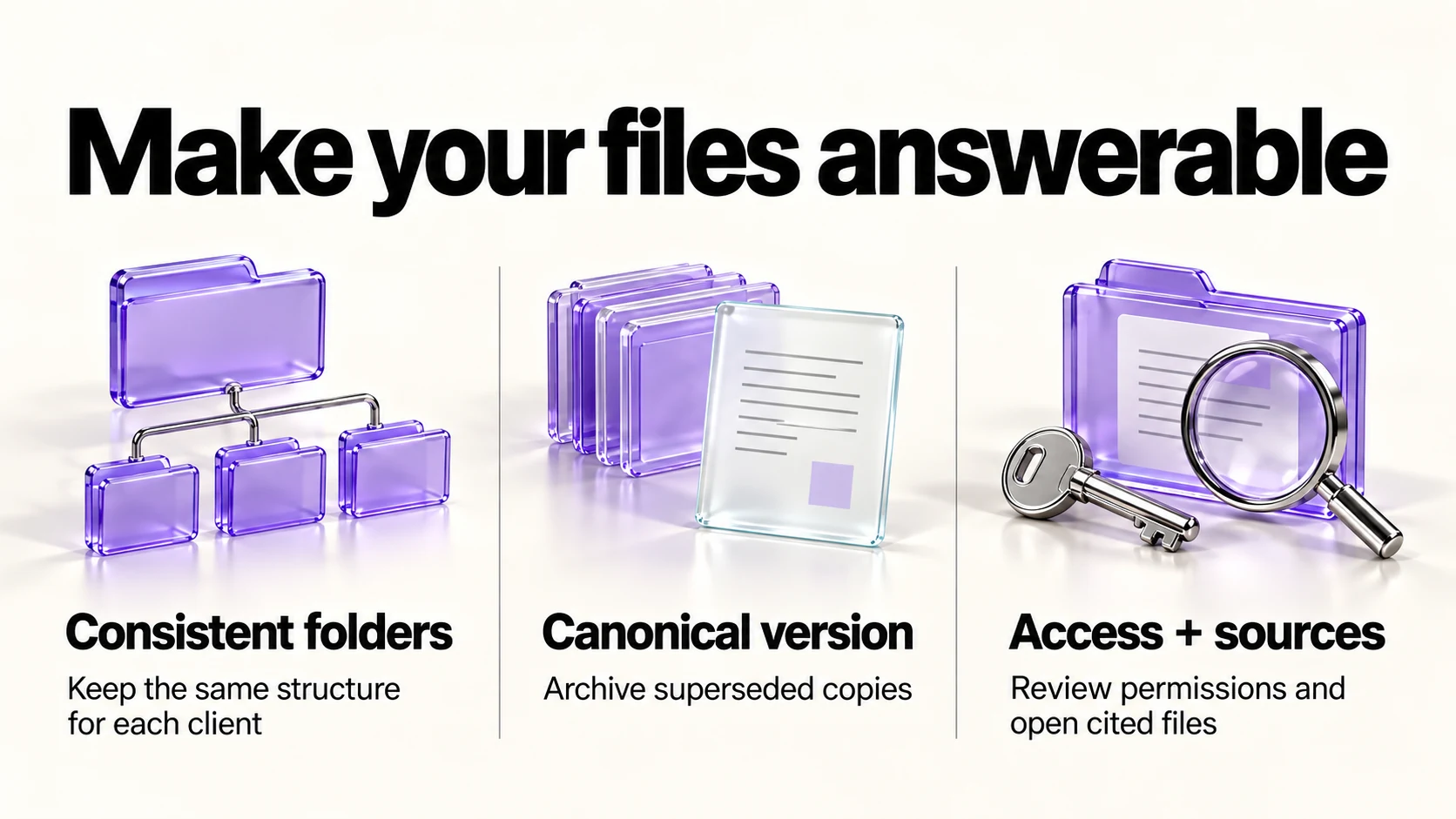
The quality of any answer depends on what it can read, so consider this initial filing checklist:
- One folder per client, with the same sub-folders every time: brief, contracts, working files, delivered.
- Date-prefixed filenames in a sortable format, such as 2026-10-23-proposal-v2.
- One canonical file per document, with superseded versions moved to an archive sub-folder rather than renamed “old”.
- Native formats where possible, because a scanned image of a contract is far harder to work with than a text PDF.
- Shared drives or shared folders reviewed quarterly, removing access for finished projects.
Access and confidentiality
- Sharing settings decide visibility, not the AI. A summary drawn from a file does not change who else can open it, and a file shared too widely stays shared too widely.
- Check client agreements before using AI features on their material, and check whether your Workspace administrator has enabled them.
- Verify before you quote. Open the file a summary cites and read the sentence.
- Remember the feedback note. Google says feedback on responses may be reviewed; do not paste client details into feedback.
If you are still deciding on Workspace billing, our flexible vs annual guide covers that, and our Gemini meeting notes guide covers the related consent questions when Gemini joins calls.
A five-minute weekly tidy
Try a five-minute timebox, extending it when the checks require more work.
- Move last week’s delivered files into the client’s delivered folder.
- Rename anything called “final” with a date.
- Archive superseded versions.
- Check that nothing new is shared with “anyone with the link” unless you meant it.
- Note in your weekly review anything a client sent that you have not filed.
Our weekly automation checkup covers building small routines like this into a working week.
Frequently asked questions
Do I need a paid plan?
Google states an eligible Google Workspace or Google AI plan is required. Check which edition your account has and what it enables.
Which file types work?
The getting-started page we checked does not list file types; related Google documentation describes summaries for PDFs and videos in the file viewer. Test with your own files before relying on it.
Will it find files shared with me?
It can use supported, accessible files within the selected source scope. No result does not prove a file is absent: use ordinary Drive search and open the actual document. Check cited passages rather than trusting the source list alone.
Is it available in my language?
Google lists availability in 34 languages on the page we checked, with feature-level differences; confirm for your account.
Sources and method
Original research: September 21, 2026. Text revision: September 21, 2026. The added source-scope and citation guidance comes from the September 21 editorial review. Original feature and language notes are retained; they were not all freshly verified for this text correction. Sources used across the original research and this revision: Google Drive Help, including source scope and citation limitations and search and retrieval. Source selection and processing limits can leave material out; citations can be wrong or fabricated. Folder structures and timeboxes are editorial suggestions. Eligibility and feature availability vary by plan, language and region.
Read next